Weekly Schedules
- Account Administrator, Regional Admin, or Multi-Account Administrator role
- To use exception days with schedules, create them first in Additional Features → Exception Days
Overview
Weekly Schedules define recurring time windows that control when users can access resources. By linking a schedule to access rights or resource groups, you automate time-based permissions — for example, allowing office access only on weekdays from 07:00 to 19:00.
Schedules can also include exception days (such as public holidays) when access should differ from the normal weekly pattern.
Key Capabilities:
- Create named schedules with day-by-day time windows (Monday through Sunday)
- Link schedules to individual access rights or resource groups
- Integrate exception days and exception periods to handle holidays and closures
- Sort and paginate schedule lists for easy management
Weekly schedules are useful whenever access should follow a repeating pattern — business hours, shift rotations, or restricted weekend access. For one-time date exceptions (holidays, maintenance), use Exception Days in combination with schedules.
Navigation
- Click "Additional features" in the left sidebar
- Select "Weekly schedules"
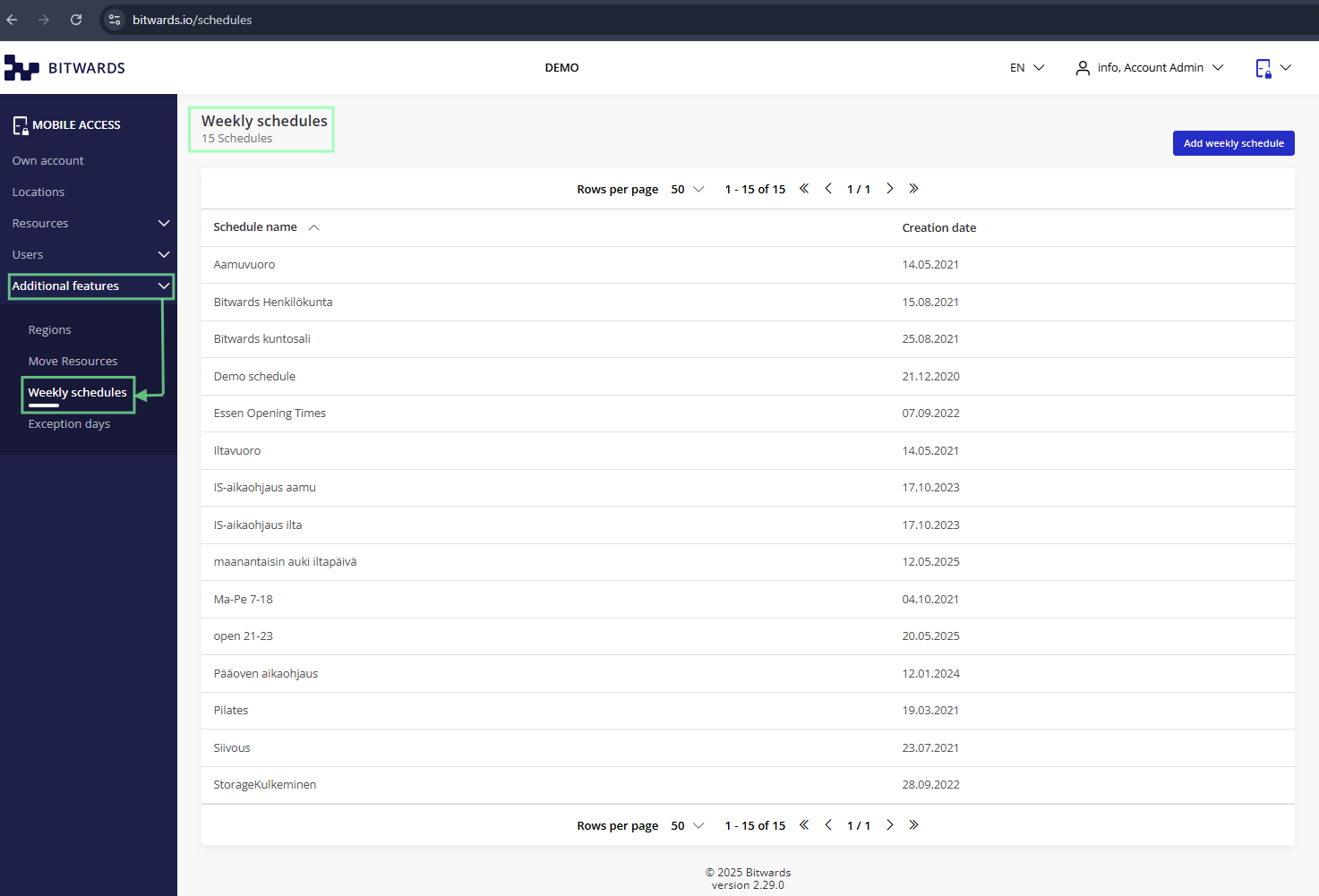 Weekly Schedules page — schedule count, Add button, and schedules table
Features
Schedules Table
The table lists all weekly schedules with the following columns:
- Schedule name — user-defined name (sortable)
- Creation date — when the schedule was created
 Click the Schedule name column header to sort alphabetically
Sorting and Pagination
Click the Schedule name column header to sort alphabetically. Use the pagination controls to adjust rows per page (10, 20, or 50) and navigate between pages.
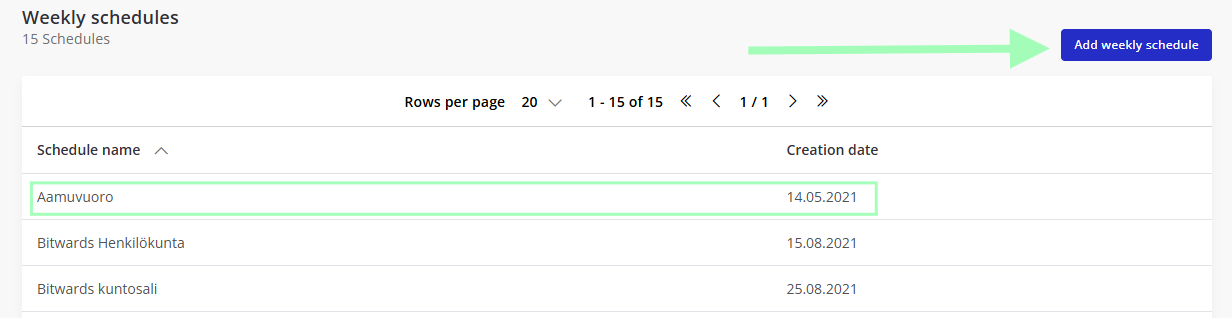
 Pagination controls — rows per page options and page navigation
Creating a Weekly Schedule
Click the "Add weekly schedule" button in the top-right corner. Enter a schedule name, then configure time windows for each day of the week.
After creating a schedule, click its row to open the details page. From here you can configure time windows for each day, link access rights, connect resources, and add exception days or exception periods.
Schedule Details
Click any schedule row to open its details page, where you can:
- Define time windows — set specific hours for each day of the week
- Link access rights — connect individual user access permissions to the schedule
- Link resources — assign resources (doors, devices) to time-based control
- Add exception days — integrate holidays and special non-access days
- Add exception periods — define longer restricted-access timeframes (maintenance, closures)
 Schedule details — time window configuration and management options
Not all device types support weekly schedules. When assigning resources, check the "Support for schedules" indicator — only compatible resources can be linked to time-based control. See Resources for details.
When an exception day falls on a scheduled day, the exception settings take precedence. For example, if a schedule allows access Monday–Friday but Christmas falls on a Wednesday, the exception day's "No access" setting overrides the normal Wednesday access window.
Related Features
- Exception Days — create holidays and special closure days that override weekly schedules
- Resources — manage individual resources that can be linked to schedules
- Resource Groups — organize resources for schedule-based access management
- Set Time Restrictions — step-by-step guide for applying weekly schedules to access rights