Resources Management
- Admin account access
- Basic understanding of your organization's physical layout and device locations
- Familiarity with device types deployed in your Mobile Access system
Overview
The Resources section serves as the central command center for managing all Bitwards Mobile Access devices across your organization. This comprehensive interface enables administrators to monitor, filter, and maintain electronic locks, cabinet locks, adapters, and controllers that power your mobile access infrastructure.
Key Management Capabilities:
- Proactive maintenance through battery status monitoring and alerts
- Efficient device discovery using advanced filtering and search functionality
- Comprehensive device oversight with detailed specifications and operational status
- Data export capabilities for reporting and external analysis
- Real-time status monitoring to prevent access disruptions
The interface intelligently prioritizes critical information, displaying battery alerts prominently while providing powerful tools to locate, analyze, and export device data efficiently.
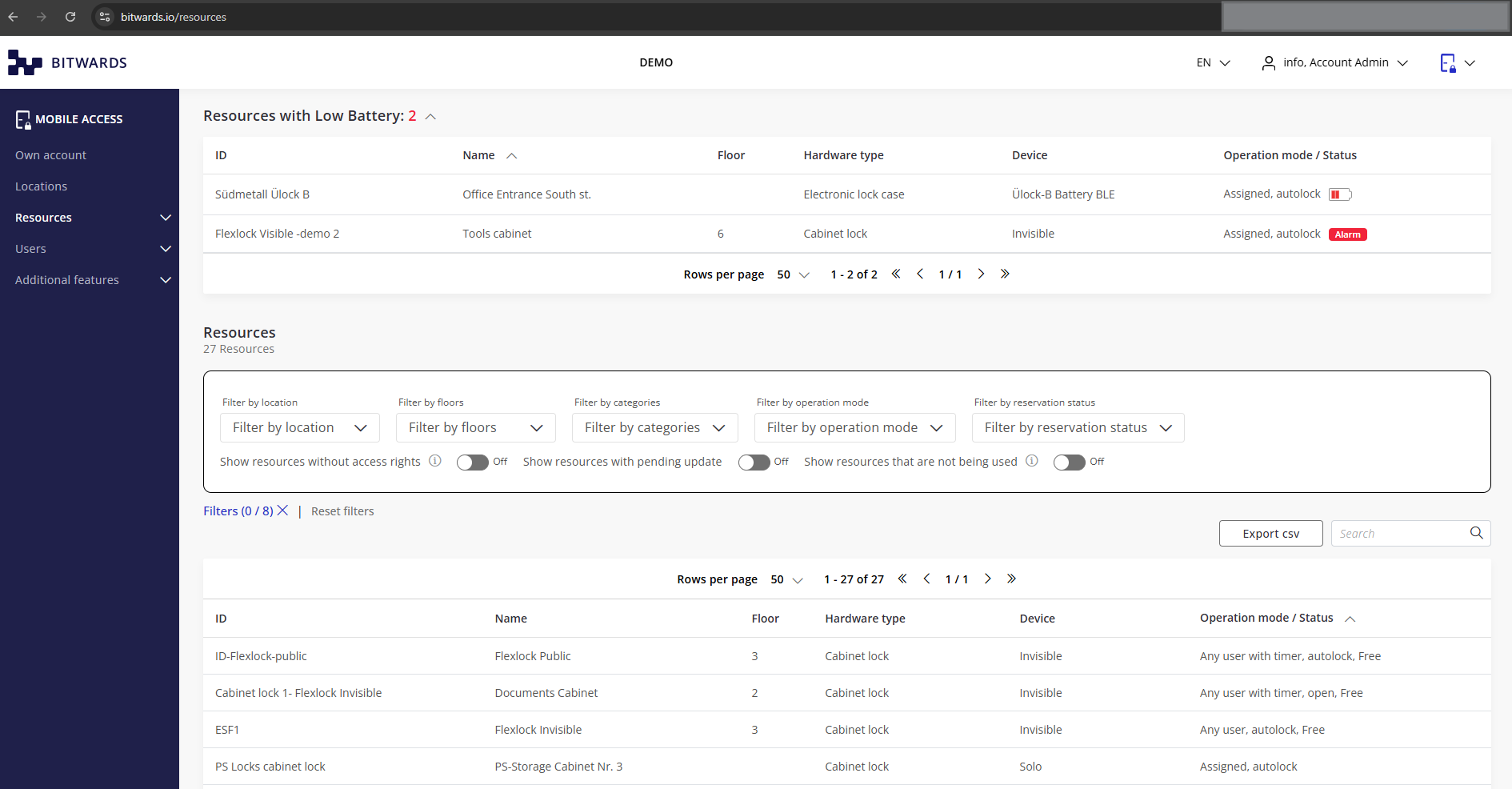 Complete Resources page showing battery alerts, filters, and device list
Navigation
To access the Resources section:
- Log in to your Bitwards Mobile Access account
- Expand "Resources" in the left sidebar menu
- Click "Resources" to view the main resources management page
Direct URL access: https://bitwards.io/resources
Features
Battery Alert Management
Critical devices requiring immediate attention are prominently displayed at the top of the Resources page, ensuring proactive maintenance and preventing access failures.
Alert Interface:
- Priority positioning - Battery alerts appear above all other content
- Clear visibility - Red alarm indicators for critical battery status
- Device count - Section header shows total number of affected devices
- Collapsible view - Click toggle arrow to minimize/expand the alert section
 Battery alert section showing devices requiring attention
The system provides dedicated monitoring for battery-powered resources, displaying devices with low or critical battery capacity in a separate priority section. Red text indicators appear when battery levels require attention, helping administrators proactively address potential access failures before they occur.
Workflow Example: When the alert section shows "Resources with Low Battery (3)", review each device's location and hardware type to plan efficient maintenance visits by grouping devices on the same floor or in the same building.
Data Management: Filter, Search, Sort & Export
The Resources page provides comprehensive data management tools that work together seamlessly, allowing you to filter your view, search for specific devices, organize results, and export data for analysis.
Advanced Filtering System
Dropdown Filter Options:
- Filter by location - Focus on specific sites or buildings
- Filter by floors - Target particular building levels
- Filter by categories - Group by admin-defined categories (R&D resources, meeting areas, restroom, lobby, etc.)
- Filter by operation mode - Show devices by operational status (Assigned autolock, Any user with timer, etc.)
- Filter by reservation status - View devices by current booking status (Booked, Free, Booking expired)
 Comprehensive filtering options for resource management
Toggle Filter Controls (On/Off):
- Show resources without access rights - Display unassigned devices
- Show resources with pending update - View devices awaiting firmware updates
- Show resources that are not being used - Display inactive devices
Filter Management Features:
- Active count tracking - "Filters (X/8)" indicator shows applied filters
- Collapsible interface - Click count indicator to minimize/expand filter section
- Quick reset - Single "Reset filters" button clears all selections
- Individual filter reset - "Remove selection" option available for each dropdown filter
- Real-time updates - Results refresh immediately as filters are applied
Search and Export Functionality
Search Operations:
- Enter search terms in the search field (searches across all table columns)
- Activate search by pressing Enter or clicking the magnifier icon
- Reset search by clearing the field and pressing Enter or clicking magnifier icon
- Review results - Resource count updates dynamically based on search results
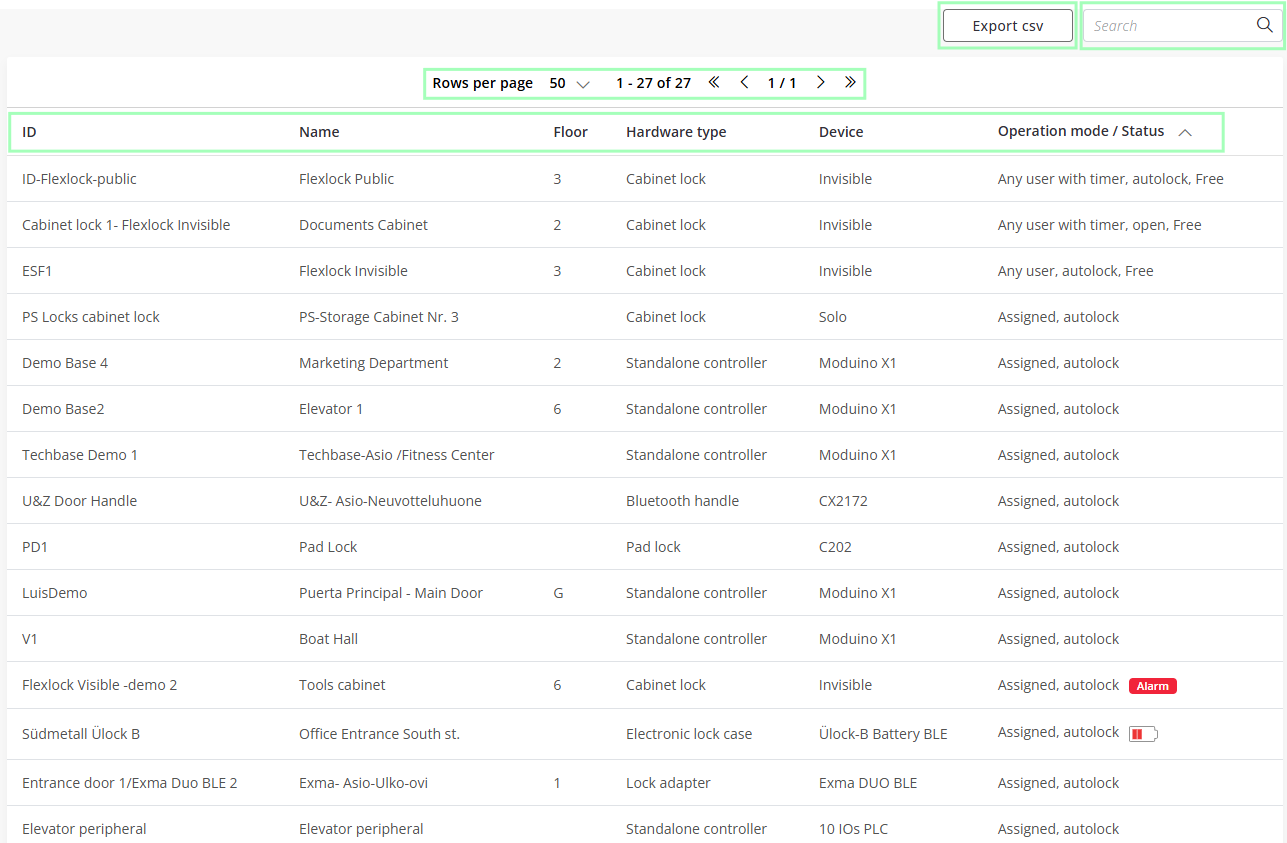 Export and search functionality for resource management
Data Export Process:
- Apply desired filters to customize your data set
- Configure search terms if targeting specific devices
- Click "Export CSV" to export/download the filtered resource data
- Use exported data for reporting, analysis, or external system integration
Export functionality respects currently applied filters and search terms. Configure your view before exporting to ensure you get the exact data set you need.
Resource List Interface
The main resource list displays all configured devices in a sortable, paginated table format with comprehensive device information.
Table Column Information:
- ID - Unique device identifier with sorting capability
- Name - Descriptive resource name (default ascending sort)
- Floor - Physical floor location information
- Hardware type - Device category classification
- Device - Specific model and manufacturer details
- Operation mode / Status - Current operational status and assignment information
List Organization Features:
- Column sorting - Click any column header to sort by that field
- Sort indicators - Small '^' symbol shows active sort column and direction
- Flexible pagination - Configurable rows per page (50, 100, etc.)
- Dynamic counting - Total count reflects filtered and searched results
- Page navigation - Standard pagination controls for large device lists
The default ascending sort by "Name" helps with alphabetical organization. Sort by "Operation mode/Status" to quickly identify devices requiring attention or by "Hardware type" for maintenance planning.
Important Notes
- Proactive monitoring prevents access failures
- Battery life varies by hardware type
- Red alarm indicators require immediate attention
- Plan maintenance visits efficiently
Filter Behavior Guidelines:
- Cumulative filtering - Multiple filters work together to narrow results progressively
- Toggle combinations - Toggle filters can be used alongside dropdown selections
- Filter persistence - Applied filters remain active until manually reset or changed
Search and Export Considerations:
- Search activation requirement - Press Enter or click magnifier icon after typing search terms
- Export reflects current view - CSV download includes only filtered and searched results
- Column-wide search - Search terms match content across all visible table columns
- Reset procedures - Both search and filters require explicit reset actions
For optimal performance with large device inventories (500+ resources), apply location or floor filters before using search functionality. Export filtered data sets rather than complete inventories for faster processing.
Resource Status Interpretation:
- Operation mode / Status - Shows current operational status with alarm indicators (e.g., "Assigned, autolock")
- Hardware type - Provides device type classification for resource identification
- Device model - Displays specific device model and technical specifications
- Floor and ID information - Shows physical location and unique device identifiers for resource management
Related Features
- Resource Groups - Group management for bulk operations
- Installation Requests - Device installation workflow
- Locations - Location management and overview
- Users - User access rights management