Users
- Account Admin, Regional Admin, or Multi-Account (admin role) access
- Active Bitwards Mobile Access account
Overview
The Users page is the central hub for managing all individuals with access to your Bitwards Mobile Access account. From this page, administrators can view, search, filter, and export user data across different roles and registration statuses.
Key Capabilities:
- View and search all users with advanced filtering by access rights, user groups, registration status, and organization
- Monitor registration progress to identify users who have not yet activated their accounts
- Manage user roles including User, Account Admin, Regional Admin, and Installer
- Search by card to locate users by their NFC card credentials (hexadecimal or decimal format)
- Export user data to CSV for external reporting and analysis
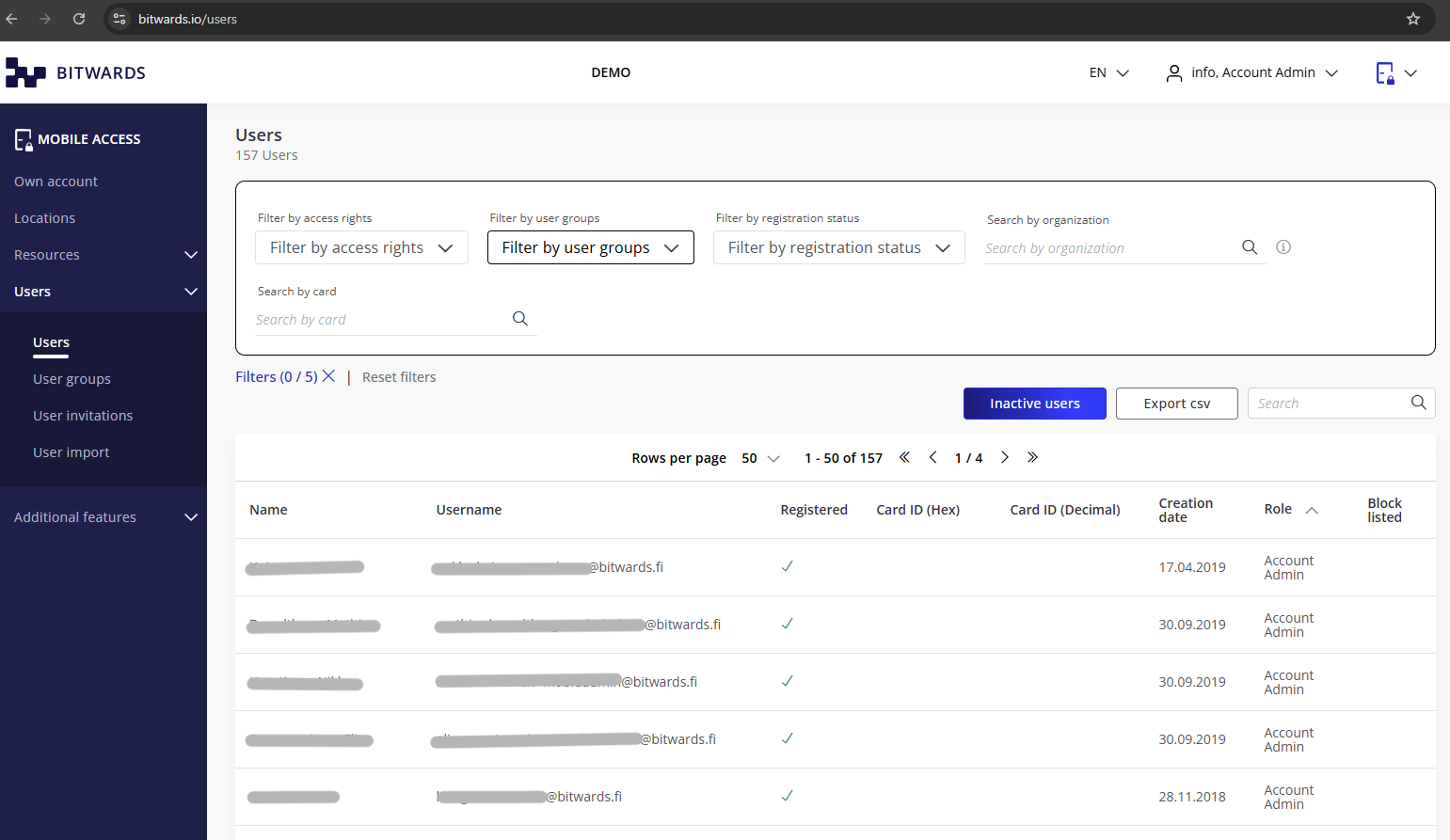 Users page showing filtering options, user table, and management actions
Navigation
To access the Users page:
- Log in to your Bitwards Mobile Access account
- Expand "Users" in the left sidebar menu
- Click "Users" to view the main user management page
Features
Filtering and Search
The Users page provides five filter options for narrowing down the user list, plus dedicated search fields.
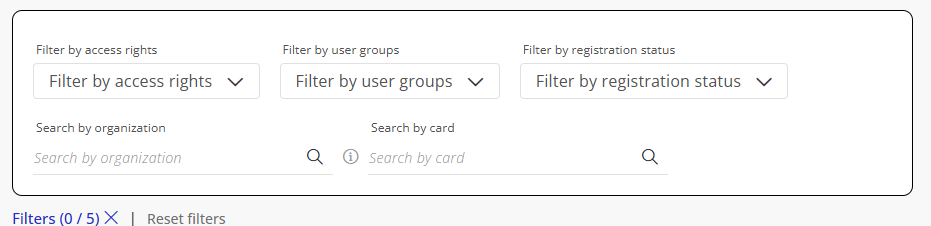 Filter options for users including role, registration status, and group filters
Dropdown Filters:
- Filter by access rights — View users based on their access permission levels
- Filter by user groups — Display users belonging to specific groups
- Filter by registration status — Show registered or unregistered users
Search Fields:
- Search by organization — Find users by their organization or member information
- Search by card — Locate users by card ID in hexadecimal or decimal format
Filter Management:
- Active filter count shown as "Filters (X/5)" below the filter section
- Click the filter count indicator to collapse or expand the filter panel
- Use the "Reset filters" button to clear all active filters at once
- Results update immediately as filters are applied
Use the general search field (in the action bar) to search across all table columns. For NFC card lookups, the dedicated "Search by card" field supports both hexadecimal and decimal formats.
User Management Actions
The action bar below the filters provides key management tools.
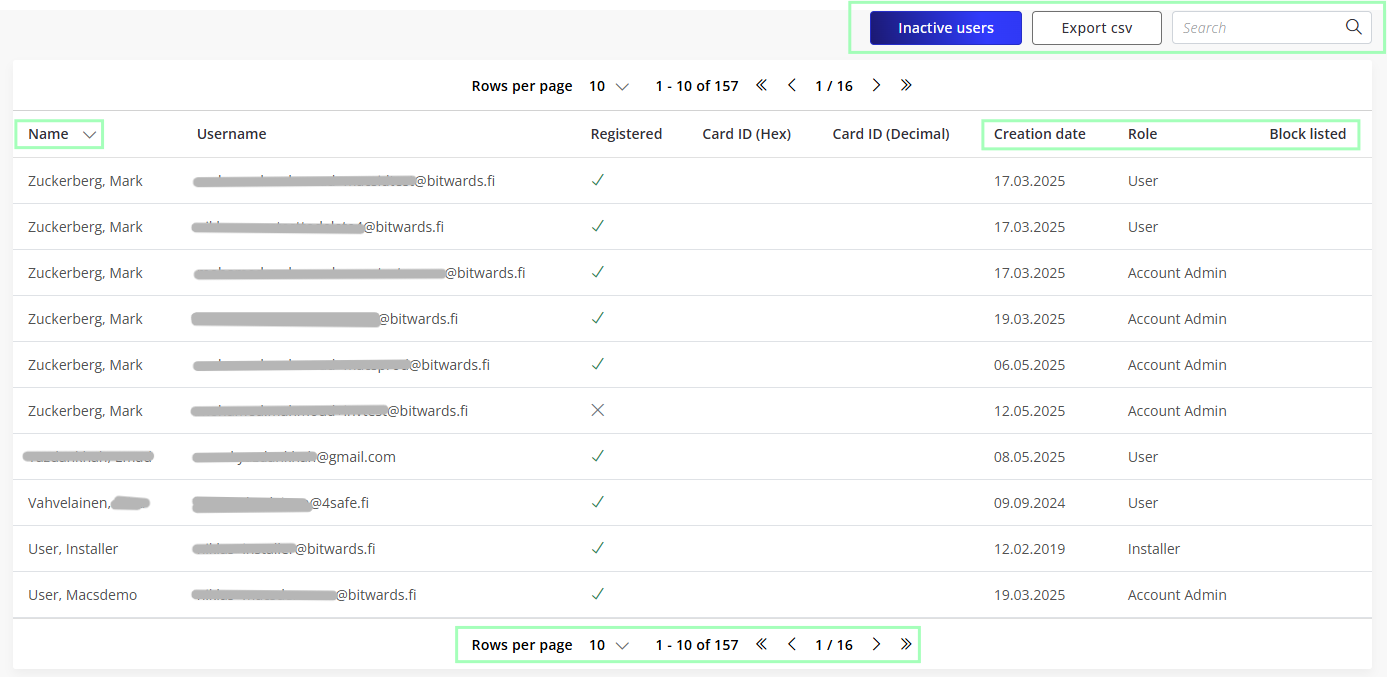 Action bar with inactive users button, CSV export, and search
- Inactive users — Opens a dedicated page for managing inactive user accounts
- Export CSV — Downloads current user data (respects active filters and search terms)
- Search field — Enter a search term and press Enter or click the magnifier icon to search across all columns
The CSV export includes only the users currently shown based on your active filters and search terms. Set your filters before exporting to get the exact data set you need.
User List Table
The main table displays all users with the following columns:
Sortable columns: Name, Creation date, Role (click column header to sort).
Non-sortable columns: Username (email), Registered, Card ID (Hex), Card ID (Decimal), Block listed.
Status Indicators:
- Registered — Checkmark (✓) for registered users, X (✗) for unregistered
- Block listed — Shows whether a user's access has been blocked
The platform supports four roles: User (standard access), Account Admin (account management), Regional Admin (location-specific administration), and Installer (device installation access). Roles can be assigned during invitation and modified later.
User Details Page
Clicking a user's name opens the user details page, which is organized into tabs:
- User details — Personal information, role, registration and invitation dates, organization, devices used, and latest app version
- Access rights — Personal access rights and user group access rights, with buttons to manage permissions (Remove access rights, Edit validity, Give new rights)
- Access history — Log of the user's door/resource access events
- User data history — Tracks changes made to the user's personal data (shows who made each change)
- Cards — NFC card management with Card ID (Hex), Card ID (Decimal), Surface ID, status, and activate/deactivate controls
The tabbed layout was introduced in release 2.13.0. The Cards tab with Surface ID support was added in release 2.24.0.
Blocking a user prevents access to all doors and resources that have been granted — including access rights inherited through user groups. The block list is delivered to doors when other users open them.
Pagination
The table supports configurable pagination with rows per page (default: 50), page navigation controls, and a result count indicator (e.g., "1 – 50 of 157").
Related Features
- User Groups — Group-based user organization and access management
- User Invitations — Invite new users or create users directly
- User Import — Bulk user import via CSV
- Resources — Device and access rights management
- How-To: Grant Access — Step-by-step access rights tutorials