Own Account
- Account Admin, VAR Admin, or Service Admin role
- Active Bitwards Mobile Access account
Overview
The Own Account section is your account dashboard in Bitwards Mobile Access. It displays your organization's profile information, contact details, and key account statistics — all in one place.
Key Capabilities:
- View and edit account details, contact information, and business address
- Monitor account statistics including locations, resources, and users
- Review account settings such as data retention policies and security configurations
- Access External API key for system integrations
The page is organized into two tabs: Account Details for profile management and Account Settings for configuration overview.
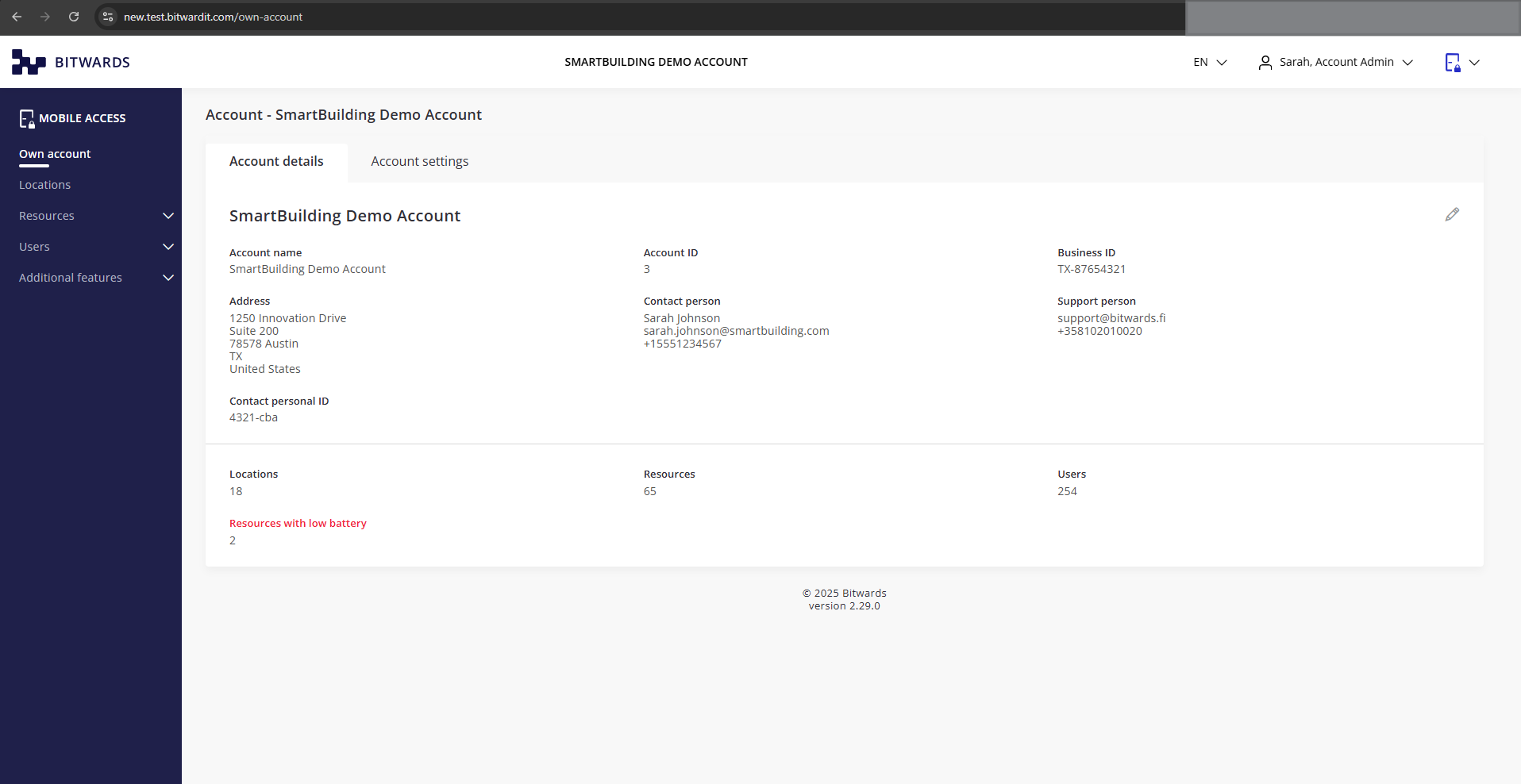 Account Details tab showing account information and statistics
Navigation
To access the Own Account section:
- Log in to your Bitwards Mobile Access account
- Click "Own account" in the left sidebar menu (first menu item)
- The page loads with two tabs: Account Details and Account Settings
Features
Account Details Tab
The Account Details tab shows your organization's profile information and account statistics. Click the edit icon (pen) in the top-right corner to modify editable fields.
Editable Information
Account Details: Account name and Business ID.
Contact Person: Name, phone number, email (all mandatory), and contact personal ID.
Support Person: Phone number and email. These details are visible to end users in the mobile application as account support contact information.
Address: Street address, postal code, city, and country (dropdown selection).
The support person's phone number and email are displayed to end users in the Bitwards mobile app. Keep this information up to date so users can reach the right contact when they need help.
System-Generated Information
The following fields are automatically provided by the system and cannot be edited:
Account ID — Your unique system identifier.
Account Statistics — Current counts for locations, resources, users, and resources with low battery.
Resources with low battery are highlighted in red in the account statistics. This provides a quick overview of devices that may need attention. For detailed battery management, see the Resources reference page.
Editing Account Details
- Click the pen icon to open the "Edit Account" form
- Modify the desired fields — mandatory fields are marked with an asterisk (*)
- Click "Save" to apply changes, or "Cancel" to discard
- Use "Discard changes" to revert any unsaved modifications
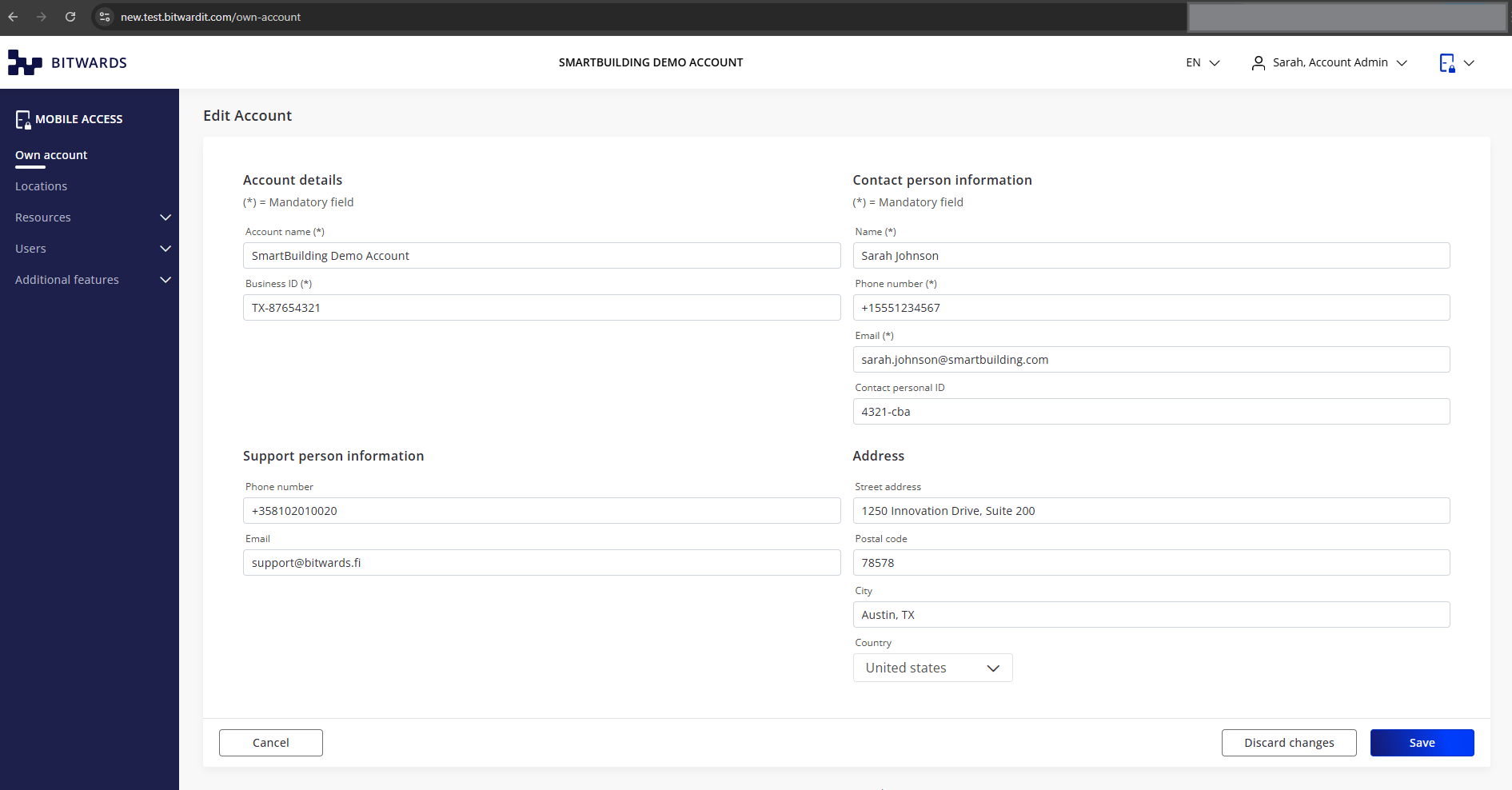 Edit Account form showing editable fields organized by section
Account Settings Tab
The Account Settings tab displays your account's configuration and system settings.
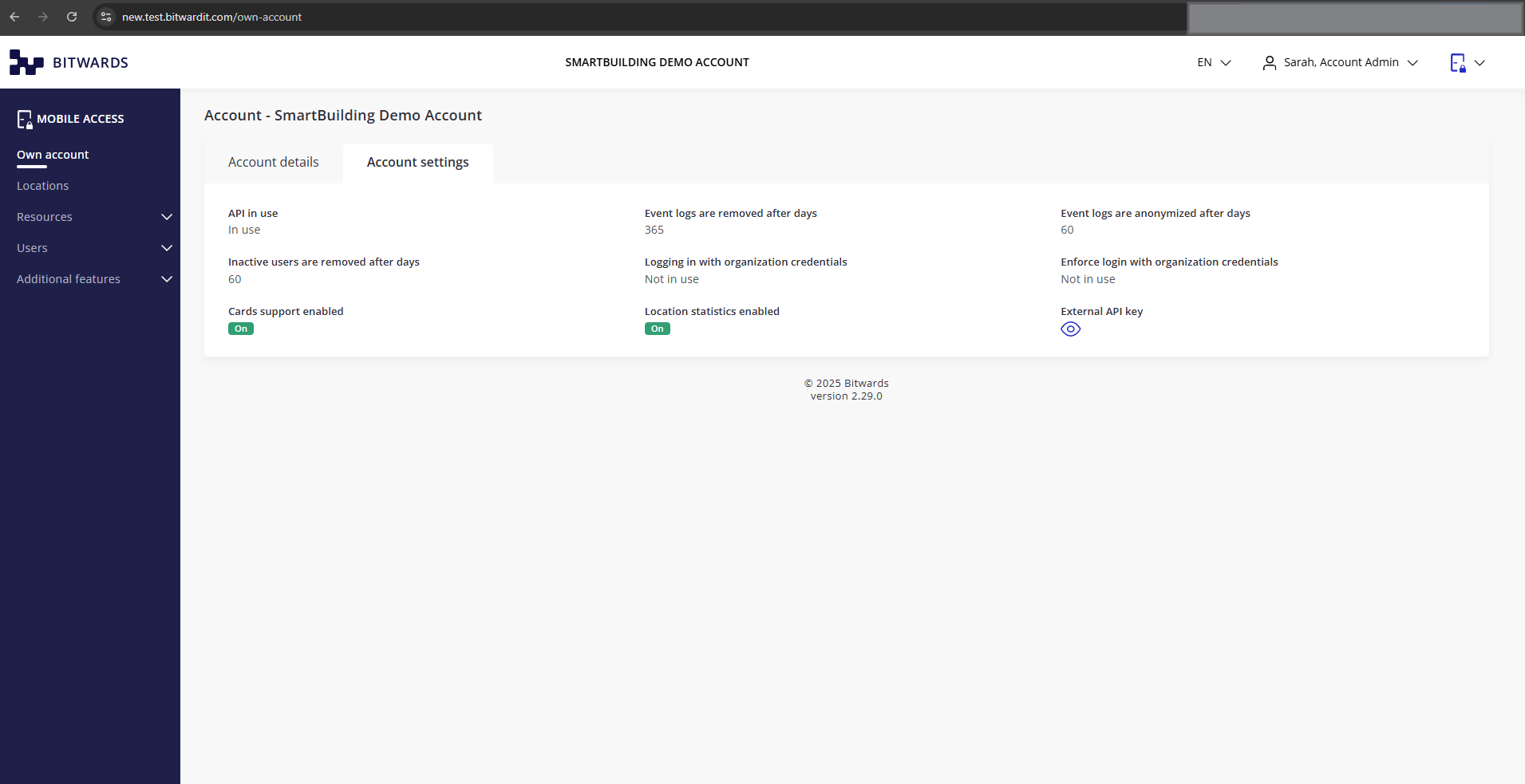 Account Settings tab showing configuration status and API key
Configuration Settings
The following settings control account behavior and data management policies:
Data Retention & Privacy:
- Event logs are removed after days — How long event logs are kept before deletion (default: 365 days)
- Event logs are anonymized after days — When user identity is removed from event logs (default: disabled)
- Inactive users are removed after days — When users who have not used the service are automatically deleted (default: disabled)
Security & Authentication:
- Logging in with organization credentials — Whether SSO/organization login is enabled
- Enforce login with organization credentials — Whether organization login is mandatory
Features:
- API in use — Current API usage status
- Cards support enabled — Whether card-based access is active
- Location statistics enabled — Whether location analytics are collected
These settings help your organization comply with data privacy requirements. Event log anonymization removes personal details from access records, while inactive user removal keeps your user list clean automatically.
External API Key
The External API key is used for system integrations and is hidden by default for security. Click the eye icon to reveal the key, and click it again to hide it.
Treat the External API key as a sensitive credential. Only share it with authorized personnel who need it for system integrations.
Important Notes
Your Account ID is a unique system identifier and cannot be changed. It is assigned automatically when the account is created.
When editing account details, all fields marked with an asterisk (*) must be completed before you can save. The mandatory fields are: contact person name, phone number, and email.
Related Features
- Resources — Device management and battery monitoring
- Locations — Location management and overview
- How to Give Access Rights — Step-by-step tutorials for managing access