Locations
- Account Admin, VAR Admin, or Service Admin role
- Active Bitwards Mobile Access account with at least one configured location
Overview
The Locations section displays all physical sites where Bitwards Mobile Access resources (locks, adapters, and controllers) are installed. This centralized view allows administrators to manage multiple locations efficiently from a single page.
Key Capabilities:
- View all configured sites with address information in a sortable table
- Add new locations with automatic address suggestions and coordinate detection
- Access location details including contact person, floors, categories, and description
- Sort and paginate the location list for efficient navigation
Each location represents a physical site — such as an office building, warehouse, or facility — where Bitwards devices are installed. Clicking a location opens its details page for configuration and resource management.
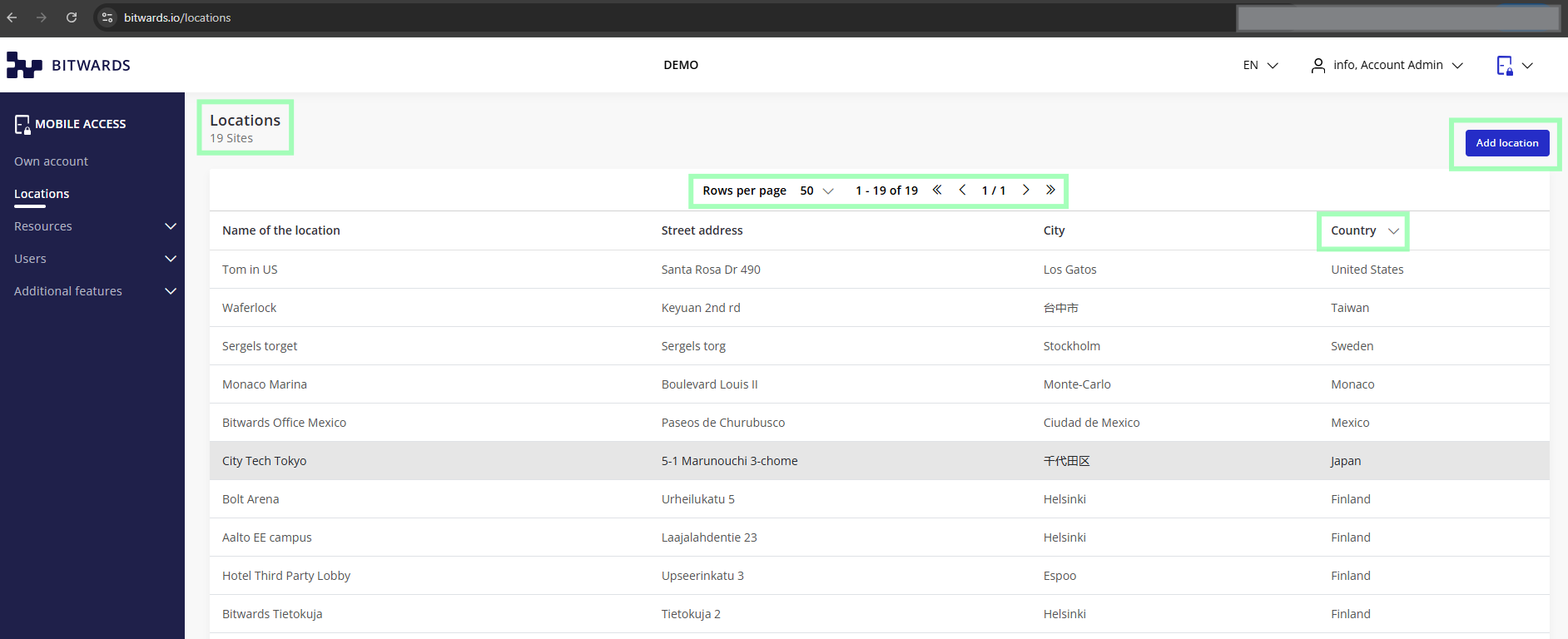 Locations page showing all configured sites with sortable columns and pagination controls
Navigation
To access the Locations section:
- Log in to your Bitwards Mobile Access account
- Click "Locations" in the left sidebar menu
- The locations list loads showing all configured sites
Features
Location List
The main page presents all configured sites in a sortable, paginated table.
Table Columns:
- Name of the location — Display name for the site (default ascending sort)
- Street address — Physical street address
- City — City where the location is situated
- Country — Country information
Sorting: Click any column header to sort by that field. A small arrow symbol indicates the active sort column and direction.
Pagination: Configure rows per page (10, 20, or 50) using the dropdown menu. Pagination controls appear at both the top and bottom of the table with identical information, showing the current range (e.g., "1 – 7 of 7") and page position.
For organizations with many sites, sort by city or country to group locations geographically, or use the name column to find a specific site alphabetically.
Adding a New Location
Click the "Add location" button in the top-right corner of the page to create a new site.
*Required Fields (marked with ):
- Location name
- Street address, postal code, city, and country
- Latitude and longitude (coordinates)
- Timezone
When entering an address, the system suggests matching locations automatically. Select a suggestion from the list and the address fields, coordinates, and timezone will be filled in for you. Only the location name needs to be entered separately.
Optional Fields:
- Description — Additional information about the location
- Contact person — Name, phone number, and email (visible to end users in the mobile app)
- Categories — Custom labels for organizing resources (e.g., "Meeting rooms", "R&D", "Warehouse")
- Floors — Building floor definitions for resource filtering and elevator configuration
Location Details
Click any location name in the list to open its details page. The location details page provides full configuration options and resource management for that site.
Location Information:
- Address and coordinates (used to show the location in the mobile app)
- Timezone setting
- Description
Contact Person:
- Name, phone number, and email for the on-site contact
- This information is displayed to end users in the Bitwards mobile application
Categories:
- Custom labels defined by administrators to organize resources at this location
- Categories can be used to filter resources in the Resources view
- Users with "Any User" mode cabinet locks can search for free cabinets by category
Floors:
- Define the building's floor structure
- Floors can be reordered by drag and drop — higher floors appear higher in the mobile application
- Floor information is used for resource filtering and elevator relay configuration
If your location has elevator-controlled access, floors must be added to the location before you can configure elevator relay mappings. See the Resources section for elevator setup details.
Important Notes
The coordinates (latitude and longitude) determine where the location appears on the map in the Bitwards mobile app. Using the address auto-complete feature ensures accurate coordinates are set automatically.
Categories and floors defined at the location level are used across the platform — in resource filtering, user-facing cabinet search, and elevator configuration. Plan your category and floor structure carefully, as it affects multiple areas of the system.
Related Features
- Resources — Device management for resources installed at your locations
- Resource Groups — Group resources across locations for bulk access management
- Own Account — Account-level settings and statistics
- How to Give Access Rights — Step-by-step tutorials for managing access